OS Structure
Table of content
- OS service
- User & OS interface
- System calls
- System services
- linkers & loaders
- Why Application are OS specific
- OS design & implementation
- OS structure
- Building & Booting an OS
- OS debugging
We can view an operating system from several vantage points One view focuses on the services that the system provides; another, on the interface that it makes available to users and programmers; a third, on its components and their interconnections.
OS service
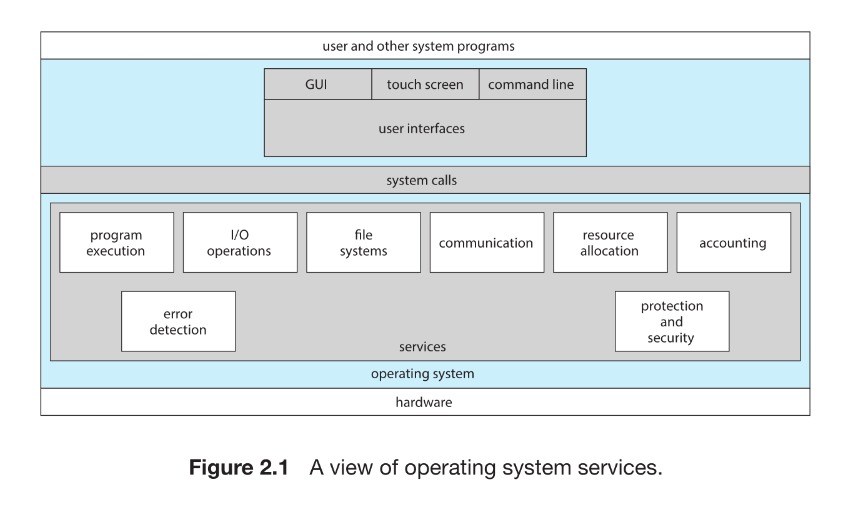
An operating system provides an execution environment for programs and offers a set of services to users and applications. These services simplify programming tasks and ensure efficient and controlled use of system resources. OS services can be divided into user-oriented services and system-oriented services.
1. User-Oriented Services
a. User Interface (UI)
Operating systems provide mechanisms through which users interact with the system. Common forms include:
- Graphical User Interface (GUI): Window-based interface using mouse, keyboard, or touch.
- Touch-Screen Interfaces: Used in mobile devices, enabling gestures and on-screen buttons.
- Command-Line Interface (CLI): Text-based interface where commands are typed in a specific format.
Many systems support multiple UI types simultaneously.
b. Program Execution
The OS must:
- Load a program into memory
- Start its execution
- Provide mechanisms for normal or abnormal termination
c. I/O Operations
Programs often require input/output operations involving files or devices. Since direct device control by users is unsafe and inefficient, the OS:
- Provides system calls for device access
- Manages device communication on behalf of processes
d. File-System Manipulation
The OS offers services to:
- Create, delete, read, write, and search files and directories
- Manage permissions and access rights
- Support multiple file systems with differing performance and feature sets
e. Communications
Processes may exchange information:
- Within the same system or
- Across networked systems
Two main communication mechanisms:
- Shared Memory: Multiple processes read/write a common memory region.
- Message Passing: OS transfers structured messages between processes or over networks.
f. Error Detection
The OS continually checks for errors in:
- Hardware (memory faults, power issues)
- I/O devices (disk parity errors, network failures)
- User programs (illegal memory access, arithmetic overflow)
On detection, the OS takes appropriate action—terminate a process, return error codes, or halt the system.
2. System-Oriented Services
These services do not directly aid the user but maintain overall system efficiency and integrity.
a. Resource Allocation
When multiple processes execute concurrently, the OS must allocate:
- CPU time
- Main memory
- File storage
- I/O devices
Specialized algorithms (e.g., CPU scheduling) determine the best way to distribute resources.
b. Logging (Accounting)
The OS keeps records of:
- Resource usage
- Programs executed
- System statistics
These logs help with billing, auditing, tuning system performance, and planning upgrades.
c. Protection and Security
The OS safeguards system resources from unauthorized access.
Key aspects include:
- Protection: Ensures processes cannot interfere with each other or the OS.
-
Security: Prevents external and internal attacks through:
- User authentication (passwords, credentials)
- Access control to devices and files
- Monitoring and recording suspicious activity
A robust system enforces security at every layer—“a chain is only as strong as its weakest link.”
User & OS interfaces
Operating systems offer multiple ways for users to interact with system services. The three primary interface types are: (1) Command-Line Interface (CLI), (2) Graphical User Interface (GUI), and (3) Touch-Screen Interface.
Each interface type serves different user groups, environments, and device categories.
1. Command Interpreters (CLI)
Definition
A command interpreter—also called a shell—is a program that accepts and executes user commands.
Key Features
- Runs when the user logs in or when a process starts.
- Common shells in UNIX/Linux: bash, csh, ksh, etc.
- Allows commands for file manipulation (create, delete, execute, copy, list, etc.).
Two Implementation Approaches
-
Command-in-Interpreter:
- Interpreter contains built-in code for each command.
- Interpreter size grows with number of commands.
-
Command-as-Program (Used by UNIX/Linux):
- Interpreter locates and executes external programs.
-
Example:
rm file.txtloads and runs the program
rmwith argumentfile.txt. - Enables easy addition of new commands without modifying the shell.
2. Graphical User Interface (GUI)
Definition
A visually oriented interface using windows, icons, menus, and pointer devices (mouse or touch).
Characteristics
- Represents files, folders, and applications as icons.
- Common in macOS, Windows, Linux desktop environments.
- Origin: Early GUI research at Xerox PARC (1970s).
- Popularized by Apple Macintosh and later Microsoft Windows.
Examples
- macOS Aqua
- Windows GUI
- Linux desktop environments: KDE, GNOME
3. Touch-Screen Interface
Definition
An interface where users interact directly with the screen using gestures (tap, swipe, pinch).
Usage
- Standard for smartphones and tablets.
- On-screen virtual keyboards replace physical ones.
Examples
- iPhone and iPad (Springboard interface)
- Android devices
4. Choice of Interface
CLI vs GUI Preferences
-
CLI preferred by system administrators and power users because:
- Faster for many tasks
- Supports automation through shell scripts
- Some advanced system functions exist only in CLI
-
GUI preferred by most general users because:
- Easier to learn
- More intuitive for everyday tasks
Platform Differences
- Traditional UNIX/Linux: Primarily CLI, but GUIs available (KDE, GNOME).
- Windows: Mostly GUI; CLI used rarely by typical users.
- macOS: Offers both Aqua GUI and CLI (Terminal).
- Mobile (iOS/Android): Almost exclusively touch-based; CLIs exist but are rarely used.
OS Perspective
- Interface choice is largely independent of internal OS design.
- OS focuses on providing services to programs, not on dictating the UI style.
System calls
- System calls provide the interface between user programs and the operating system.
- Usually exposed as C/C++ functions; some require assembly for low-level hardware access.
- Allow programs to request OS services such as process creation, I/O, file operations, communication, and protection.
2. Example: File Copy Program (Conceptual Flow)
A simple copy program uses many system calls:
Input Gathering
- Write prompt to screen → system call
- Read input filename + output filename → system call
Opening/Creating Files
open()input file- Handle errors (file not found, permission denied)
create()output file; handle existing file cases
Copy Loop
read()from inputwrite()to output- Check for errors (EOF, device issues)
Termination
close()both files- Write completion message
- Normal process exit
→ Even simple programs involve dozens of system calls.
3. Application Programming Interface (API)
Purpose
- Programmers work through APIs (Windows API, POSIX API, Java API) instead of calling system calls directly.
- API functions internally invoke the appropriate OS system calls.
Benefits
- Portability: Same API works across OS versions.
- Simplicity: System calls are low-level; APIs make programming easier.
- Abstraction: Hides implementation details and system call numbers.
Example
- Windows
CreateProcess()→ internally triggers kernel callNtCreateProcess(). - POSIX
read()andwrite()map directly to UNIX/Linux system calls.
4. Role of the Run-Time Environment (RTE)
- RTE includes the language libraries, loaders, interpreters.
- Intercepts API calls and sends them to the system-call interface.
-
System-call interface:
- Maps each call to a system call number
- Looks up the function in a table
- Switches from user mode → kernel mode, executes call, returns result
5. How Parameters Are Passed to System Calls
Three standard techniques:
- Pass parameters in registers (fastest, limited by register count)
- Pass a memory block/table containing parameters and pass its address in a register
- Use the stack (push parameters → OS pops them)
Linux uses registers for ≤ 5 parameters, otherwise uses a memory block.
6. Types of System Calls
System calls fall into six categories:
6.1 Process Control
create process,terminate processload,executewait,signalget/set process attributesallocate/free memory
Used for: Program execution control, error handling, debugging.
Examples: fork(), exec(), exit(), wait()
6.2 File Management
create,deletefilesopen,closeread,write,repositionget/set file attributes
6.3 Device Management
requestdevice,releasedeviceread,write,repositionget/set device attributes- Attach/detach devices
Many OSes unify files and devices under a single interface.
6.4 Information Maintenance
get/set timeget/set system dataget/set process, file, device attributes- Memory dump & debugging support (
dump())
6.5 Communications
Two IPC models:
A. Message Passing
open connection,close connectionsend message,receive message- Needs address translation:
gethostid(),getpid()
Used with daemons, servers, and networked processes.
B. Shared Memory
shared_memory_create()shared_memory_attach()- Fastest communication method but needs synchronization.
6.6 Protection
- Controls access to system resources.
-
System calls include:
set permissions,get permissionsallow user,deny user
Essential for multi-user systems and networked environments.
7. Example OS Behavior
Single-tasking (Arduino)
- No OS; sketch runs directly.
- Boot loader loads program → only one program at a time.
Multitasking (FreeBSD)
-
Shell starts processes using:
fork()→ creates a new processexec()→ runs a new program in that process
- Processes run in foreground or background.
- Termination via
exit().
8. System Call Examples (Windows vs. UNIX)
| Function Area | Windows | UNIX/Linux |
|---|---|---|
| Process control | CreateProcess() |
fork() |
ExitProcess() |
exit() |
|
| File mgmt | CreateFile() |
open() |
ReadFile() |
read() |
|
| Device mgmt | SetConsoleMode() |
ioctl() |
| Info | GetCurrentProcessId() |
getpid() |
| Comm. | CreatePipe() |
pipe() |
| Protection | SetFileSecurity() |
chmod() |
System Service
1. Definition
- System services (system utilities) sit above the operating system and below application programs.
- Provide a convenient environment for program development and execution.
- Many are simple wrappers around system calls; others are complex standalone tools.
2. Categories of System Services
A. File Management
- Create, delete, copy, rename files and directories
- Print, list, and manipulate file system content
- Provide user-level access to file operations
B. Status Information
- Retrieve system status: date, time, available memory, disk space, number of users
- Provide performance data, logs, and debugging information
- Output may be text, file logs, GUI windows
- Some OSes include a registry for configuration storage
C. File Modification
- Text editors for creating and editing file contents
- Tools to search file contents and perform text transformations
D. Programming-Language Support
- Compilers, assemblers, interpreters (C, C++, Java, Python, etc.)
- Debuggers and related development tools
E. Program Loading and Execution
- Loaders: absolute, relocatable, linkers, overlay loaders
- Systems to execute programs after compilation
- Machine-level and high-level language debugging facilities
F. Communications
- Enable communication between processes, users, and systems
-
Support activities such as:
- Messaging between users
- Web browsing
- Remote login
- File transfers
G. Background Services
- System-program processes started at boot
- Some run once; others run continuously as services/subsystems/daemons
-
Examples:
- Network daemons (listen for connections)
- Scheduled task runners
- Error monitoring services
- Print servers
- Many OSes run dozens of daemons
- Used especially when tasks run in user context instead of kernel context
3. Application Programs Provided with OS
-
Most OS distributions include commonly used applications:
- Web browsers
- Word processors
- Text formatters
- Spreadsheets
- Databases
- Compilers
- Graphics/statistics tools
- Games
4. User’s View of the Operating System
- Users typically interact through system programs and application programs, not system calls.
-
The same OS services can appear differently under:
- GUI (e.g., macOS desktop)
- CLI (e.g., UNIX shell)
- Dual booting demonstrates differing interfaces using the same hardware (e.g., macOS vs Windows).
Linkers and Loaders
1. Where Programs Begin
-
Programs initially exist on disk as binary executable files Examples:
a.out,prog.exe. -
To run on a CPU, this binary must be:
- Loaded into memory
- Placed inside a process’s address space
- Scheduled on a CPU core
2. Full Pipeline: Compile → Link → Load → Execute
A. Compilation
- Source code → Object file
-
Object files are in relocatable format, meaning:
- They can be loaded into any memory address.
-
Hands-on example:
gcc -c main.cOutput:
main.o(relocatable object file)
B. Linking
-
Objective: Combine multiple object files + libraries → single executable
-
Linker resolves:
- Function calls across files
- Library references (
printf,sqrt, etc.) - Symbol addresses
-
Hands-on command:
gcc -o main main.o -lm-lm= link math library -
Output:
main(binary executable)
C. Loading (performed by OS loader)
- Loader places executable into the process’s address space.
-
Loader performs relocation:
- Assigns final addresses to code & data
- Fixes references to functions, global variables, library calls
Hands-on: How loading actually happens on UNIX
-
You type:
./main -
The shell calls:
fork()→ creates a new processexec("./main")→ replaces the child with your program
-
Loader loads the program into memory.
GUI equivalent
- Double-clicking an app internally triggers a similar exec-like loader call.
3. Dynamic Linking (DLLs / Shared Objects)
Most modern systems do NOT link all libraries into the executable.
Why dynamic linking?
- Saves memory
- Reduces executable size
- Loads library only if needed during runtime
Hands-on example (Linux shared libs)
- Executable does NOT contain math library code.
-
Instead, linker inserts relocation info:
- Loader will dynamically link libm.so if program calls its functions.
Windows equivalent
- Uses DLLs (Dynamic-Link Libraries)
Bonus: Shared libraries can be shared across processes
-
Memory-efficient because:
- OS maps the same library into multiple processes
- Code section is shared
- Only data sections are private
4. File Formats (Practical OS Concepts)
ELF (Executable and Linkable Format) – Linux / UNIX
-
Used by:
- Object files
- Executable files
- Shared libraries
-
Includes:
- Machine code
- Symbol tables (function names, variable references)
- Entry point (first instruction address)
Hands-on ELF inspection
file main.o      # Shows "ELF relocatable"
file main        # Shows "ELF executable"
readelf -h main  # Detailed breakdown of ELF headers
PE (Portable Executable) – Windows
Equivalent format used for .exe and .dll.
Mach-O – macOS
Used for macOS and iOS programs.
5. Summary Diagram (Conceptual Flow)
Source Code (main.c)
        |
        | gcc -c main.c
        v
Relocatable Object File (main.o)
        |
        | gcc -o main main.o -lm
        v
Executable File (main)
        |
        | ./main  →  fork() → exec()
        v
Loader loads program + performs relocation
        |
        v
Program running in memory → scheduled on CPU core
6. Key Hands-On Takeaways (Exam + Practical)
Compilation
- Use
gcc -c file.cto produce relocatable.ofiles.
Linking
- Use
gcc -o exec file.o -lmto link libraries.
Loading
- Happens automatically when calling
exec(). - Shell triggers
fork()thenexec().
Dynamic Linking
- Saves memory.
- Libraries loaded on demand.
- Shared across processes.
ELF Tools
file— identify file type.readelf— inspect ELF headers.
Why we have OS-specific Applications?
1. Core Reason
Applications compiled for one operating system cannot run on another because:
- Each OS provides its own system calls, binary formats, APIs, and ABIs.
- CPUs have different instruction sets, so binaries are architecture-specific.
2. How Apps Become Cross-Platform (Three Methods)
1. Interpreted Languages (Python, Ruby)
- Source code is interpreted line-by-line by an interpreter available on each OS.
- Interpreter translates instructions and calls OS-native system calls.
- Pros: Portability.
- Cons: Slower performance; limited feature access.
2. Virtual Machine–Based Languages (Java JVM)
- Program compiled to bytecode, then executed by a Virtual Machine (VM).
- The VM (part of language’s RTE) is ported to many OSes.
- Pros: Same bytecode runs anywhere the VM exists.
- Cons: Similar performance overhead and feature limitations as interpreters.
3. Using Standard APIs (e.g., POSIX)
- Program compiled separately for each OS using a common API standard.
- Requires porting + recompilation + testing for each operating system.
- Pros: High performance, native features.
- Cons: Time-consuming; must port every new version.
3. Why Cross-Platform Execution Is Still Hard
A. Different OS Binary Formats
- Linux/UNIX → ELF
- Windows → PE
- macOS → Mach-O Each format specifies:
- Header layout
- Code & data locations
- Loading rules
B. CPU Instruction Set Differences
- Example: x86 vs ARM A binary compiled for one cannot run on another.
C. System Call Differences
OSes differ in:
- System call names
- Call numbers
- Operand ordering
- How calls are invoked (trap instructions, software interrupts)
- Return values and error codes
Thus, even identical program logic cannot run without modification.
4. ABI (Application Binary Interface)
-
Defines binary-level rules for one OS on one architecture:
- Address width
- Parameter passing (stack/registers)
- Stack layout
- Binary library formats
- Data type sizes
ABIs help maintain compatibility within the same OS + CPU family, but do NOT solve cross-platform portability.
Example:
- ABI for ARMv8: executable works only on systems supporting that ABI.
5. Practical Implication
To run on multiple OSes and CPU architectures (e.g., Windows, macOS, Linux, Android, iOS), an application must be:
- Interpreted, or
- Run through a VM, or
- Recompiled and ported separately for each OS + CPU combination.
This explains the heavy engineering effort behind multi-platform applications like:
- Firefox
- Chrome
- VS Code
- Spotify
6. Final Insight
An app only runs if its binary, system calls, APIs, and ABI match the OS + CPU.
Otherwise, it cannot load or execute, even if the code itself is correct.
OS Design & Implementation
1. Design Goals
A. System-Level Context
Operating-system design depends on:
- Hardware platform
- System type: desktop/laptop, mobile, distributed, real-time, embedded
B. Two Categories of Requirements
1. User Goals
Users want:
- Easy-to-use, intuitive system
- Reliable and safe
- Fast and responsive
(Vague; not directly actionable for design.)
2. System Goals
Developers want:
- Easy to design, implement, maintain
- Flexible
- Reliable and error-free
- Efficient
(Also vague; require engineering interpretation.)
C. No Universal Design
Different requirements → Different OS designs Examples:
- VxWorks (embedded, real-time)
- Windows Server (enterprise, multiaccess, general-purpose)
OS design is a creative engineering task, guided by software engineering principles.
2. Mechanisms vs Policies (Critical OS Design Principle)
Mechanism
How a function is performed. Example:
- Timer interrupt → mechanism for CPU protection
Policy
What should be done. Example:
- How long each user gets CPU time → policy
Why the Separation Matters
- Policies change over time and across environments
- Mechanisms should remain stable
- Enables flexibility and reusability
- Changing a policy should not require rewriting mechanisms
Example: Priority mechanism can support:
- Giving priority to I/O-bound tasks
- OR giving priority to CPU-bound tasks (Policy decides; mechanism stays same.)
3. Mechanism/Policy in Real Systems
Microkernel Approach
- Very small kernel
- Mostly mechanism; policies added via modules or user programs
- Highly flexible, customizable
Monolithic Commercial Systems (Windows, macOS)
- Mechanisms + policies tightly integrated
- Ensures uniform behavior and UI across all devices
- Less flexibility for system modification
Open Source Systems (Linux)
- Mechanism available; policies modifiable
- Anyone can replace core components (e.g., CPU scheduler)
4. OS Implementation
A. Languages Used
Modern OS implementations use:
- C and C++ for most kernel and system code
- Assembly only for low-level hardware handling
- Higher-level languages for frameworks and libraries
Example: Android
- Kernel → C + Assembly
- System libraries → C / C++
- Application framework → Java
B. Benefits of Using Higher-Level Languages
- Faster development
- More compact and maintainable code
- Easier debugging
- Easier portability across hardware
- Compiler improvements automatically improve OS performance
C. Potential Disadvantages
- Slightly lower speed than pure assembly
- Slightly higher memory overhead → Not significant today due to powerful CPUs and optimizing compilers
D. What Actually Improves OS Performance
Major gains come from:
- Better algorithms
- Better data structures
Not from micro-optimizing assembly code
Performance-critical OS components:
- Interrupt handlers
- I/O manager
- Memory manager
- CPU scheduler
These are optimized after correctness is achieved.
5. Practical Engineering Insight
- Write OS in a high-level language first
- Ensure correctness
- Identify bottlenecks with profiling
- Rewrite only the critical hot paths in optimized C or assembly
OS structure
1. Why OS Structure Matters
-
Modern OSes are large, complex, and must be:
- Easy to modify
- Reliable
- Maintainable
-
Solution → Break the OS into modules/components with clear interfaces (similar to decomposing a program into functions).
2. Monolithic Structure
Definition
- Entire OS kernel runs in one large binary within one address space.
Characteristics
- All core services (file system, scheduling, memory management, device drivers) run in kernel mode.
-
Very fast because:
- No message passing between components
- System calls are direct and lightweight
Examples
- Original UNIX
- Linux
- Windows (modern versions adopt monolithic + modular aspects)
Pros
- High performance
- Low overhead for system calls & internal communication
Cons
- Hard to maintain
- Hard to extend safely
- A bug in one part can crash the entire system
3. Layered Structure
Idea
-
OS divided into a hierarchy of layers:
- Layer 0 → hardware
- Layer N → user interface
Properties
- Each layer uses only lower layers
- Higher layers do not need to know internal implementation of lower layers
Benefits
- Easy to debug (errors are isolated by layer)
- Clean modularity & abstraction
- Easier verification
Drawbacks
- Performance overhead: multiple layers to cross for a simple operation
- Hard to define perfect layers
Used in
- TCP/IP networking model
- Some OS components (but pure layering is rare)
4. Microkernel Architecture
Idea
- Move most OS services to user space
-
Keep kernel minimal:
- Low-level memory management
- Basic scheduling
- IPC mechanisms
Communication
- All interactions occur through message passing via the microkernel.
Benefits
- Very secure (fault isolation)
- Very modular (easy to add services)
- Easier to port across architectures
Cons
- Performance overhead: copying messages between processes + context switching
- Historically slower than monolithic systems
Examples
- Mach (CMU)
- Darwin (macOS/iOS) → Mach microkernel + BSD kernel
- QNX (real-time embedded OS)
Real-world adjustments
- macOS puts Mach + BSD + drivers in one address space to reduce message-copy overhead → Hybrid microkernel
5. Modular Kernel (Loadable Kernel Modules)
Definition
- Kernel core + additional features loaded as modules at boot or runtime.
Properties
- Supports dynamic extension without recompiling the kernel
- Modules can call each other (not strictly layered)
- Faster than microkernels because no message passing
Advantages
- Flexibility + performance
- Easy to add device drivers, file systems, network stacks
Examples
- Linux (device drivers, file systems, networking)
- macOS / BSD variants
- Windows (uses loadable modules as well)
Hands-on relevance
- Adding USB driver dynamically
- Loading file system modules (e.g., ext4, NTFS)
- Kernel experiments without rebooting system
6. Hybrid Systems
Reality
-
Most real OSes mix approaches:
- Monolithic performance
- Microkernel modularity
- Layering for structure
Examples
- Linux → monolithic + modular
- Windows → monolithic + microkernel-like subsystems
- macOS/iOS → hybrid (Mach + BSD + I/O Kit in same address space)
7. Case Studies
A. macOS and iOS Architecture
Layers
-
User Experience Layer
- macOS → Aqua GUI
- iOS → Springboard (touch-based)
-
Application Frameworks
- Cocoa (macOS)
- Cocoa Touch (iOS) → supports touch, sensors, cameras
-
Core Frameworks
- QuickTime, OpenGL, Metal, media services
-
Kernel Environment (Darwin)
- Mach microkernel
- BSD kernel (POSIX APIs)
- I/O Kit + Kernel Extensions (kexts)
macOS vs iOS
- macOS for Intel (historically) / ARM Macs now
- iOS for ARM-based mobile devices
-
iOS has:
- Stricter security
- Aggressive memory + power management
- Restricted libc/POSIX access
B. Android Architecture
Layers
- Applications (Java/Kotlin)
-
ART VM (Android Runtime)
- AOT compilation → converts .dex → native code
- More efficient for mobile devices
-
Android Frameworks
- UI, media, sensors, telephony, activities, services
-
Native Libraries
- WebKit (browser engine)
- SQLite
- SSL
- Surface Manager
-
HAL (Hardware Abstraction Layer)
- Provides uniform hardware interface
- Enables portability across phones/tablets
-
Linux Kernel (modified)
- Binder IPC
- Power & memory management changes
- Drivers for mobile hardware
Bionic libc
- Smaller, faster than glibc
- Designed for mobile CPUs
- Avoids GPL dependencies
8. Windows Subsystem for Linux (WSL)
Purpose
- Run native Linux ELF binaries on Windows 10/11
How it works
- User starts
bash.exe -
WSL creates Linux-like environment using:
- LXCore
- LXSS
-
Linux system calls translated to:
- Equivalent Windows system calls (direct mapping when possible)
- Or partial emulation (e.g., fork requires special handling)
Key concept
- Linux binaries run inside Pico processes on Windows
- Not virtualization → system call translation layer
Building & Booting an OS
1. OS Generation (Building an Operating System)
Why OS generation is needed
- Systems may come without an OS or with an OS you wish to replace.
- OS must often be configured for specific hardware (CPU, devices, drivers).
1.1 Steps to Build an OS from Scratch
- Write or obtain OS source code
-
Configure the OS for the target hardware
- Feature selection
- Drivers
- Memory/disk parameters
- Stored in a configuration file
- Compile the OS
- Install the OS
- Boot the machine into the new OS
1.2 Configuration Approaches
Three primary approaches differ in tailoring vs. generality:
A. Compile-Time Customization (Most rigid)
- Configuration file modifies source
- OS fully recompiled → system build
- Best for embedded systems (fixed hardware)
B. Precompiled Module Selection (Common today)
- Choose required modules from libraries (e.g., only needed drivers)
- Faster than recompiling the whole kernel
- OS still somewhat generic
C. Fully Modular (Most dynamic)
- Decisions made at runtime
- Uses dynamic modules / plug-ins
- Example → Linux Loadable Kernel Modules (LKMs)
2. Hands-on Example: Building Linux Kernel
Steps to compile and install a custom Linux kernel:
-
Download source
- From:
https://kernel.org
- From:
-
Configure kernel
- Command:
make menuconfig - Generates
.configfile
- Command:
-
Compile kernel
make- Produces
vmlinuz(compressed kernel image)
-
Compile modules
make modules
-
Install modules
make modules_install
-
Install kernel
make install- Updates boot loader automatically (e.g., GRUB)
After reboot → system runs the new kernel
2.1 Installing Linux via Virtual Machine
Two practical options:
A. Build VM from scratch
- Boot VM using Linux ISO
- Run installer (no kernel compilation needed)
B. Use VM Appliance (Pre-built VM image)
- Download ready-made VM
- Import into VirtualBox/VMware
3. System Boot Process (How a Computer Starts an OS)
High-Level Boot Steps
- Bootstrap/boot loader starts
- Kernel is located and loaded into memory
- Kernel initializes hardware
- Root filesystem is mounted
3.1 BIOS vs UEFI Booting
BIOS (Older, multistage)
- BIOS loads a small boot loader from boot block
- Boot block loads full bootstrap loader
- Bootstrap loads OS kernel
UEFI (Modern, single-stage)
- Faster startup
- Supports large disks, 64-bit systems
- Acts as a full boot manager
3.2 What Boot Loader Does
Typical responsibilities:
- Hardware diagnostics
- Initialize CPU registers, controllers
- Load kernel into memory
- Mount initial filesystem
- Start OS initialization process
3.3 GRUB (Linux Boot Loader)
- Open-source, widely used in UNIX/Linux
- Editable boot-time configuration
- Allows selecting different kernels
Example /proc/cmdline parameters
BOOT_IMAGE=/boot/vmlinuz-4.4.0-59-generic
root=UUID=5f2e2232-4e47-4fe8-ae94-45ea749a5c92
BOOT_IMAGE→ kernel file to loadroot→ root filesystem location (UUID)
3.4 initramfs (Initial RAM Filesystem)
Purpose
- Temporary filesystem created by boot loader
- Contains essential drivers & modules required to access the real root filesystem
Linux Boot Flow
- Load compressed kernel
- Load
initramfs - Kernel installs required drivers
- Switch root from
initramfs→ disk root filesystem - Start systemd (PID 1)
- Services start
- Show login prompt
3.5 Android Boot Process
Android uses its own boot loader (often LK — Little Kernel).
Key Android differences
- Kernel is Linux-based but does not use GRUB
initramfsbecomes permanent root filesystem-
After boot:
- Kernel starts Android’s
init - Creates services
- Loads home screen (Launcher)
- Kernel starts Android’s
4. Recovery / Single-User Mode
Most OS boot loaders support:
- Booting into recovery mode
- Filesystem repair
- Fixing kernel issues
- Reinstalling or repairing OS installations
Supported by:
- Windows
- Linux
- macOS
- Android & iOS (via specialized recovery tools)
✔ Summary (For Exam / Revision)
- OS building involves config → compile → install → boot.
- Kernel configuration ranges from fully compiled to modular runtime loading.
- Linux kernel build uses
make,.config, and dynamic modules. - Boot process requires a bootstrap loader (BIOS/UEFI → GRUB → kernel).
- initramfs provides a temporary environment until real root filesystem loads.
- Android boot uses LK, keeps initramfs permanently.
- Boot loaders provide recovery and OS selection capabilities.
OS Debugging
1. Debugging in Operating Systems — Core Ideas
Debugging = finding + fixing errors in software or OS kernel. Includes:
- Failure debugging (crashes, improper behavior)
- Performance tuning (removing bottlenecks)
Hardware debugging is excluded.
2. Failure Analysis
2.1 User-Level Process Failure
When a user process fails:
- OS writes error details to a log file
- OS may capture a core dump (snapshot of process memory)
- A debugger (e.g.,
gdb) inspects core + running program
⚙ Hands-on Example (Linux) View core dump:
gdb ./program core
2.2 Kernel Failure
Kernel failures = crashes (panic in Linux, BSOD in Windows)
Challenges:
- Kernel cannot safely write to filesystem during a crisis (filesystem may be unstable)
-
Solution:
- Save crash dump to a non-filesystem disk region
- On reboot, a recovery process moves dump → file for analysis
⚙ Practical Insight Crash dump handling must not rely on filesystem drivers, since those drivers may be the cause of failure.
3. Performance Monitoring & Tuning
Goal: Identify bottlenecks & fix them.
Two monitoring approaches:
- Counters (state snapshot)
- Tracing (event-by-event sequence)
4. Counter-Based Monitoring Tools
4.1 Linux Per-Process Tools
| Tool | Purpose |
|---|---|
ps |
Reports info about specific processes |
top |
Live CPU, memory, process stats |
4.2 Linux System-Wide Tools
| Tool | Purpose |
|---|---|
vmstat |
Memory usage & paging statistics |
netstat |
Network interface stats |
iostat |
Disk I/O usage stats |
/proc Filesystem (Key Hands-on Detail)
Linux exposes counters via /proc pseudo-filesystem.
Examples:
cat /proc/cpuinfo       # CPU details
cat /proc/meminfo       # Memory usage
cat /proc/2155/status   # Per-process info for PID 2155
5. Windows Performance Tools
Windows Task Manager
Shows:
- CPU usage
- Memory usage
- Per-process runtime stats
- Networking throughput
6. Tracing Tools (Event-Centric Analysis)
Tracing = capturing every step of system activity (system calls, IO events).
6.1 Linux Per-Process Tracing
| Tool | Purpose |
|---|---|
strace |
Trace system calls used by a process |
gdb |
Source-level step debugging |
Example:
strace ls
strace -p 1225       # attach to running process
6.2 Linux System-Wide Tracing
| Tool | Purpose |
|---|---|
perf |
CPU profiling, kernel events, performance counters |
tcpdump |
Capture network packets |
Example:
sudo perf top
sudo tcpdump -i eth0
7. BCC (BPF Compiler Collection) — Modern Kernel Tracing
BCC = advanced toolkit built on eBPF (extended Berkeley Packet Filter) Purpose:
- Dynamically instrument kernel + user-level code
- Low overhead, safe, verified execution
How BCC/Ebpf Works
- Write tracing logic in Python
- Embed C code that compiles into eBPF instructions
-
eBPF code inserted into the running kernel using:
- kprobes / uprobes (function entry instrumentation)
- tracepoints (predefined kernel events)
-
eBPF verifier checks:
- safety
- no infinite loops
- minimal performance impact
7.1 Hands-on BCC Examples
Disk I/O tracing
./disksnoop.py
Sample Output:
TIME(s)     T  BYTES   LAT(ms)
1946.29     R      8    0.27
1946.33     R      8    0.26
1948.34     R   8192    0.96
1950.43     W   4096    0.56
Interpretation:
- R/W = Read/Write
- BYTES = I/O size
- LAT = latency per operation
Tracing open() calls for a specific process
./opensnoop -p 1225
Tracks all open system calls made by PID 1225.
8. Kernighan’s Law (Classic Debugging Insight)
“Debugging is twice as hard as writing the code in the first place.”
Meaning: write simple, readable code so debugging remains possible.
✔ Summary Table (One-Page Revision)
| Area | Key Concepts | Hands-on Tools |
|---|---|---|
| Failure Analysis | Core dump, kernel crash dump | gdb, OS crash logs |
| Counters | Snapshot metrics | ps, top, vmstat, netstat, /proc |
| Tracing | Step-by-step activity | strace, perf, tcpdump |
| Modern Tracing | Dynamic kernel instrumentation | BCC (eBPF) tools |
| Kernel Debug Challenges | No filesystem reliability during crash | Crash dump to raw disk partition |